Download and Installation of CodeArts Agent IDE



Install CodeArts Agent in Visual Studio Code

If you have not installed Visual Studio Code yet, download and install it first. >>>
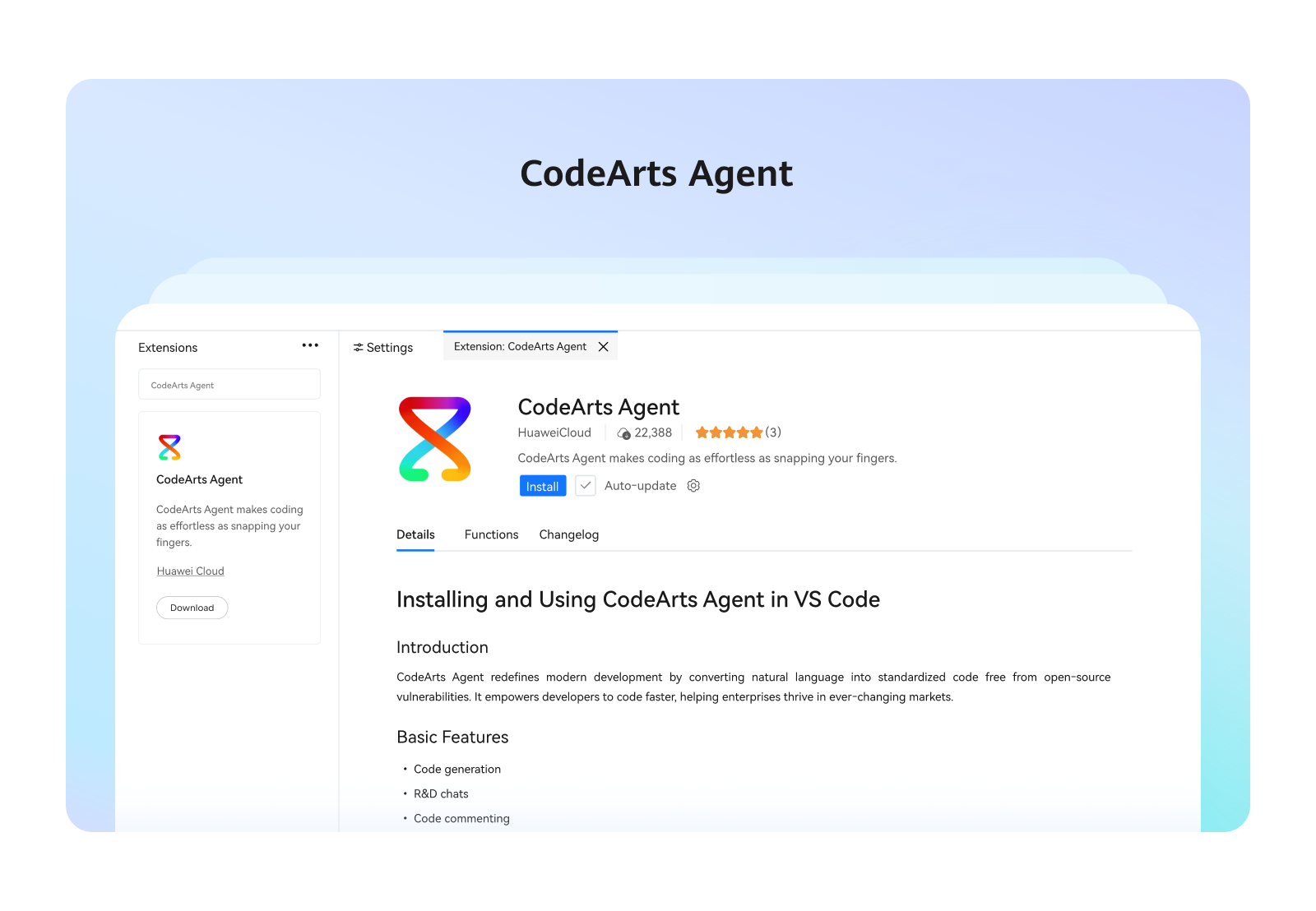
Click Install on this card to access Visual Studio Code's marketplace. Find and install CodeArts Agent there. Once done, sign in with your Huawei Cloud account.
Step 1: Click Extensions in the left-hand navigation pane.
Step 2: Search for CodeArts Agent and click Install.
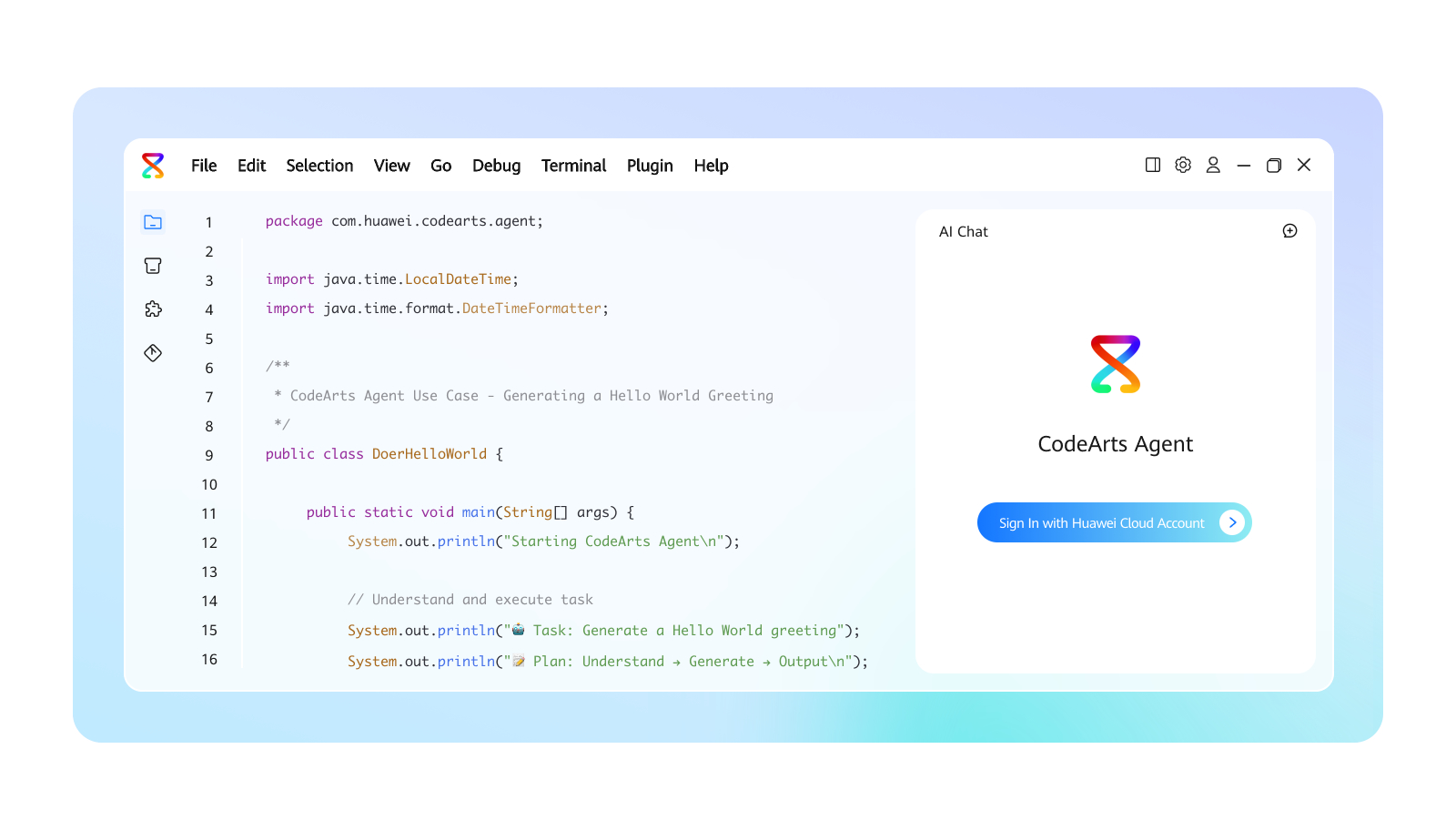
Step 3: Restart Visual Studio Code. After the restart is successful, sign in with your Huawei Cloud account.
Install CodeArts Agent in JetBrains IDE
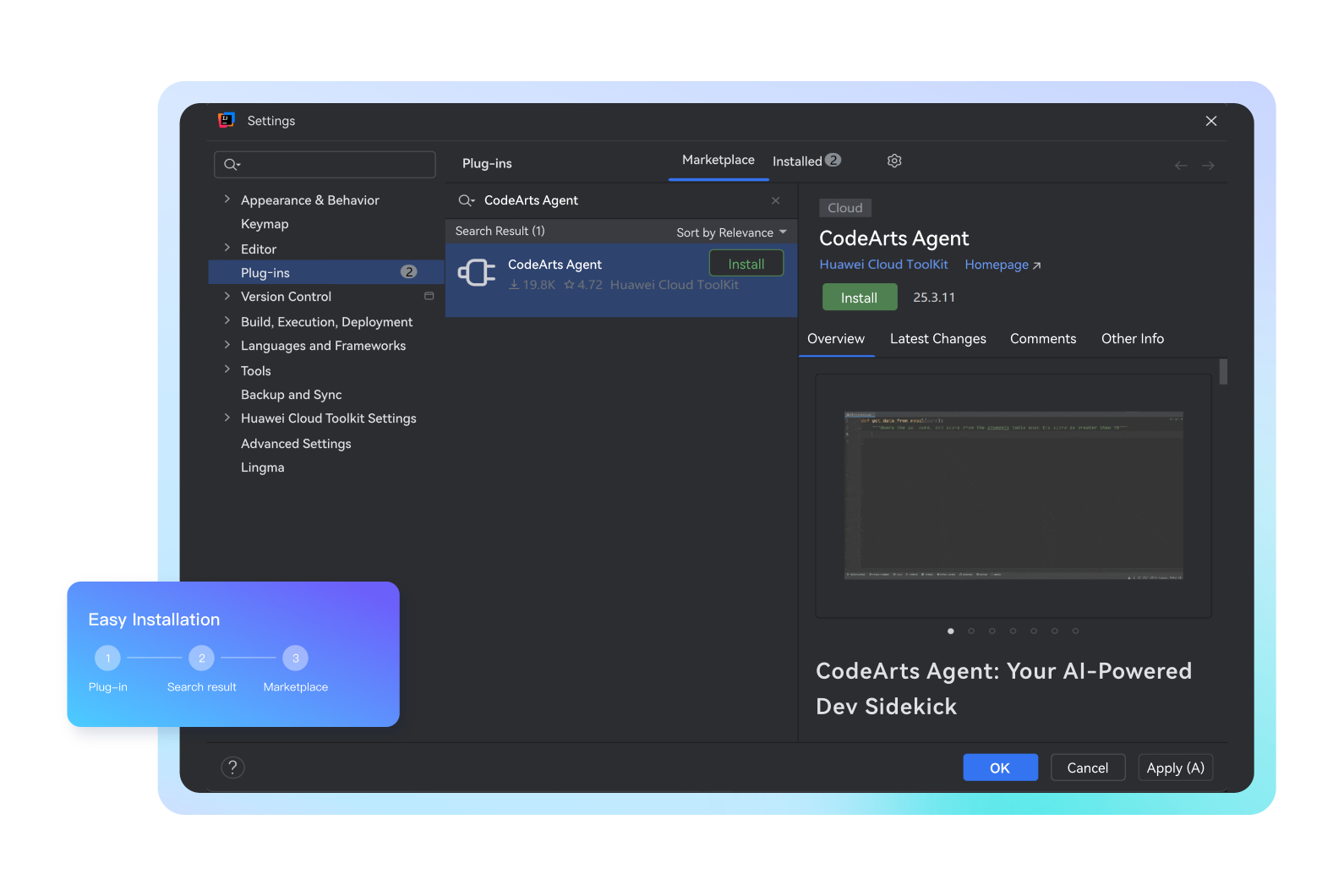

If you have not installed IntelliJ IDEA yet, download and install IntelliJ IDEA 22.3 or later. >>>
For Windows users, click Settings in IntelliJ IDEA.
Choose File > Settings > Plug-ins > Marketplace from the navigation pane. On the displayed page, search for CodeArts Agent, and click Install.
After the restart is successful, sign in with your Huawei Cloud account.
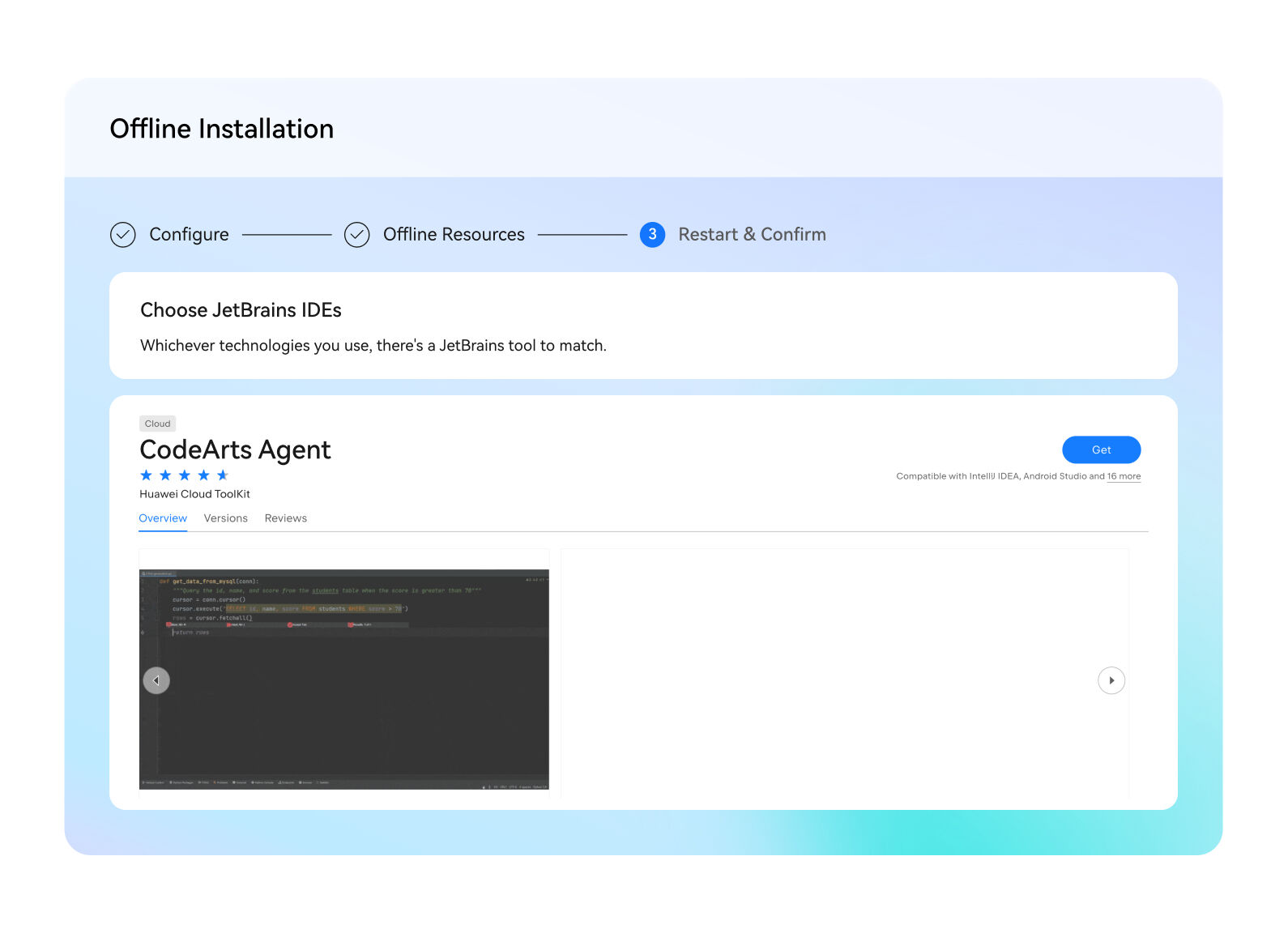
If you have not installed IntelliJ IDEA yet, download and install IntelliJ IDEA 22.3 or later. >>>
For Windows users, click Settings in IntelliJ IDEA.
1. Download the CodeArts Agent ZIP.
If you have installed IntelliJ IDEA 22.3 to 25.3, download the offline package here. >>>
2. Choose Plug-ins from the navigation pane. On the displayed page, click the Settings icon and select Install Plug-in from Disk from the drop-down list. Select the downloaded ZIP file and install it.
After the restart is successful, sign in with your Huawei Cloud account.
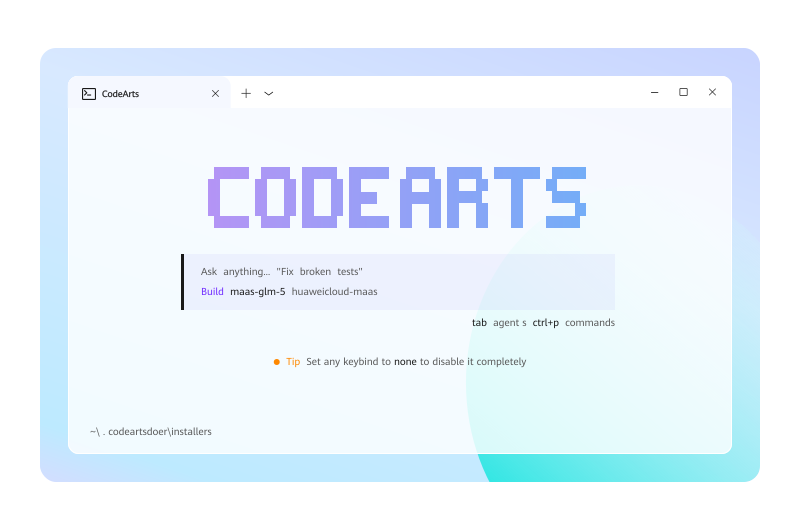
Terminal-Native, AI-Powered—CodeArts Agent CLI
Experience seamless collaboration right inside your terminal-native environment with CodeArts Agent. Streamline development workflows, elevate code quality, and multiply R&D efficiency.